
This guide will walk you through the complete process of creating your Bookovia Service Provider account. You must complete all setup steps before you can receive and accept service bookings.
Prefer video? Click here to watch the quick walkthrough.
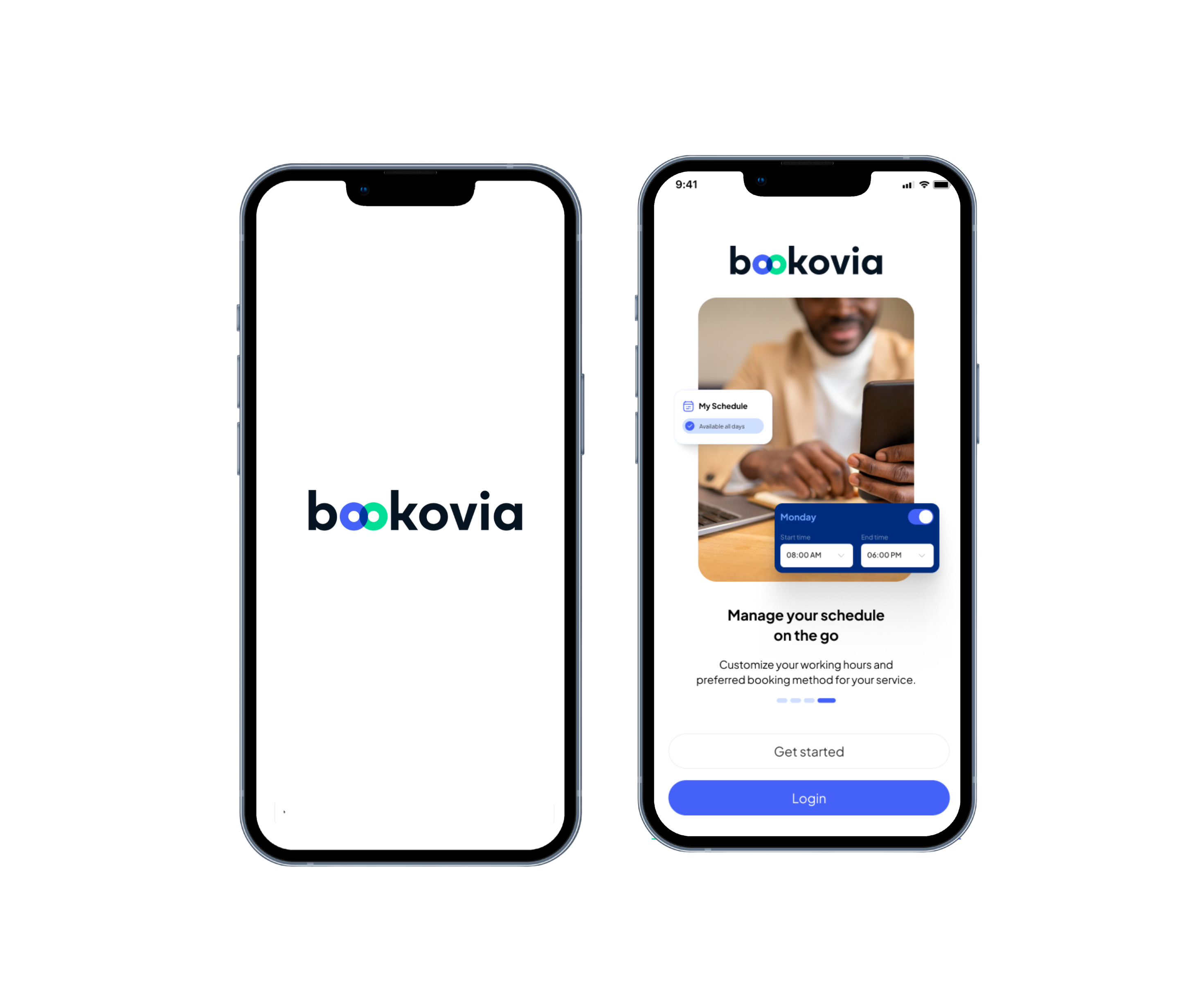
Step 1 — Download the Bookovia App
The Bookovia Provider App is available on both Android and iOS devices.
1. Open the Google Play Store (Android) or Apple App Store (iPhone/iPad)
2. Search for Bookovia
3. Tap Install
4. Open the app after installation
Step 2 — Create Your Account
1. Open the Bookovia app
2. Tap Sign Up
3. Select Service Provider
4. Enter your email address
5. Enter the verification code sent to your email
Tip:
If you don’t see the verification code, check your Spam or Junk folder.
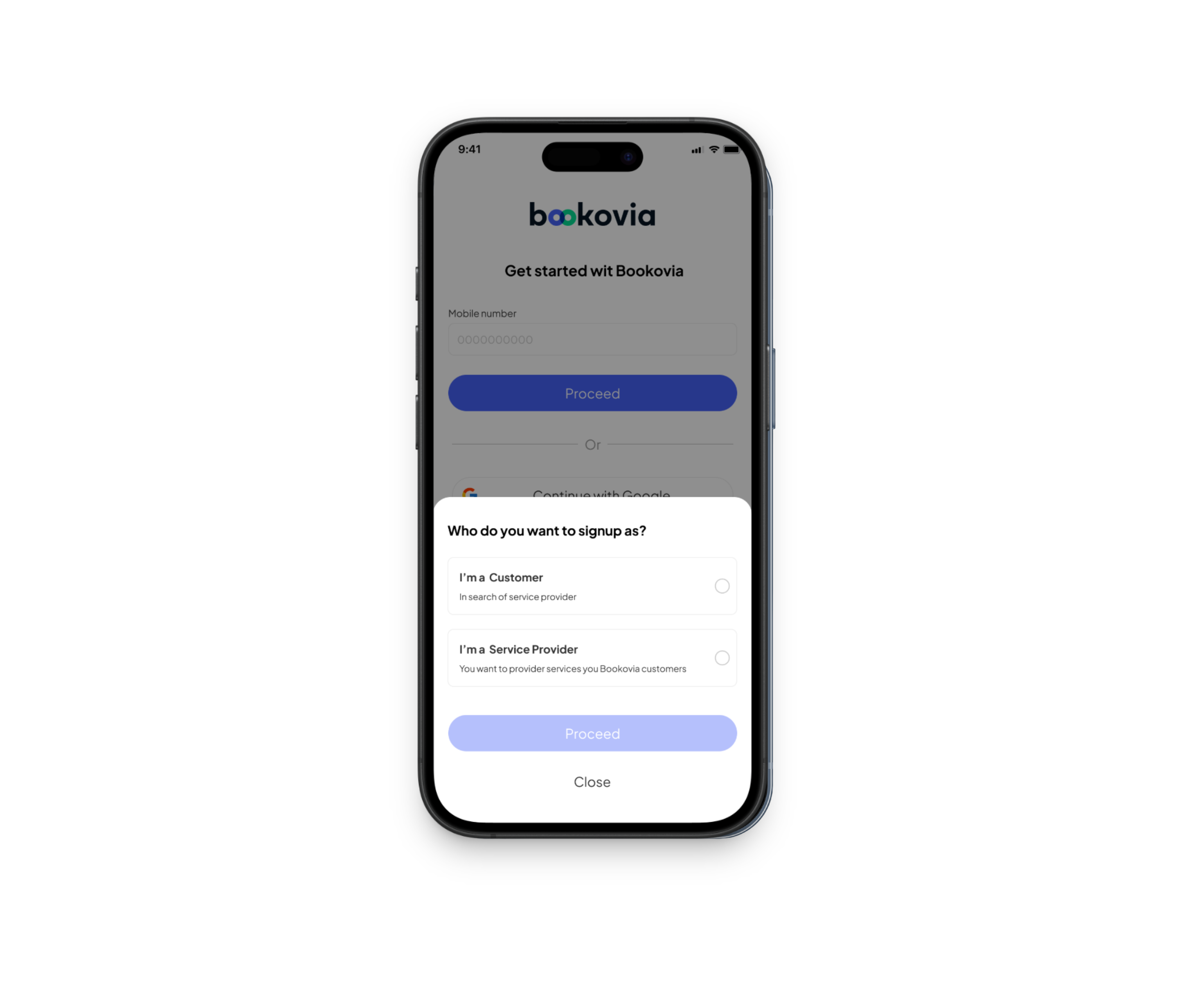
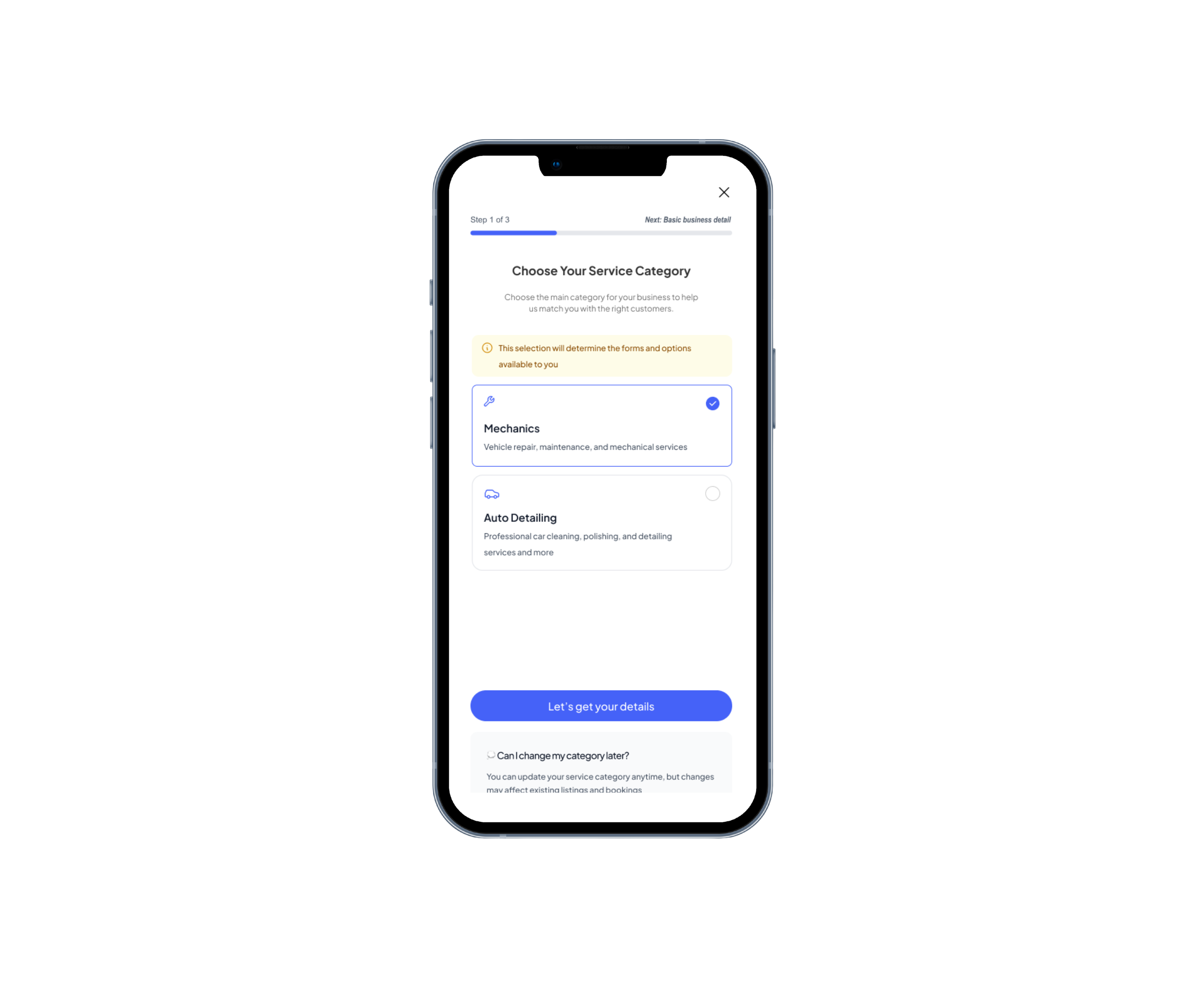
Step 3 — Choose Your Service Category
During registration, you will be asked to select the services you provide.
Choose one:
• Mechanic (Brake Specialist)
• Auto Detailing
This selection determines what type of service requests you will receive from customers.
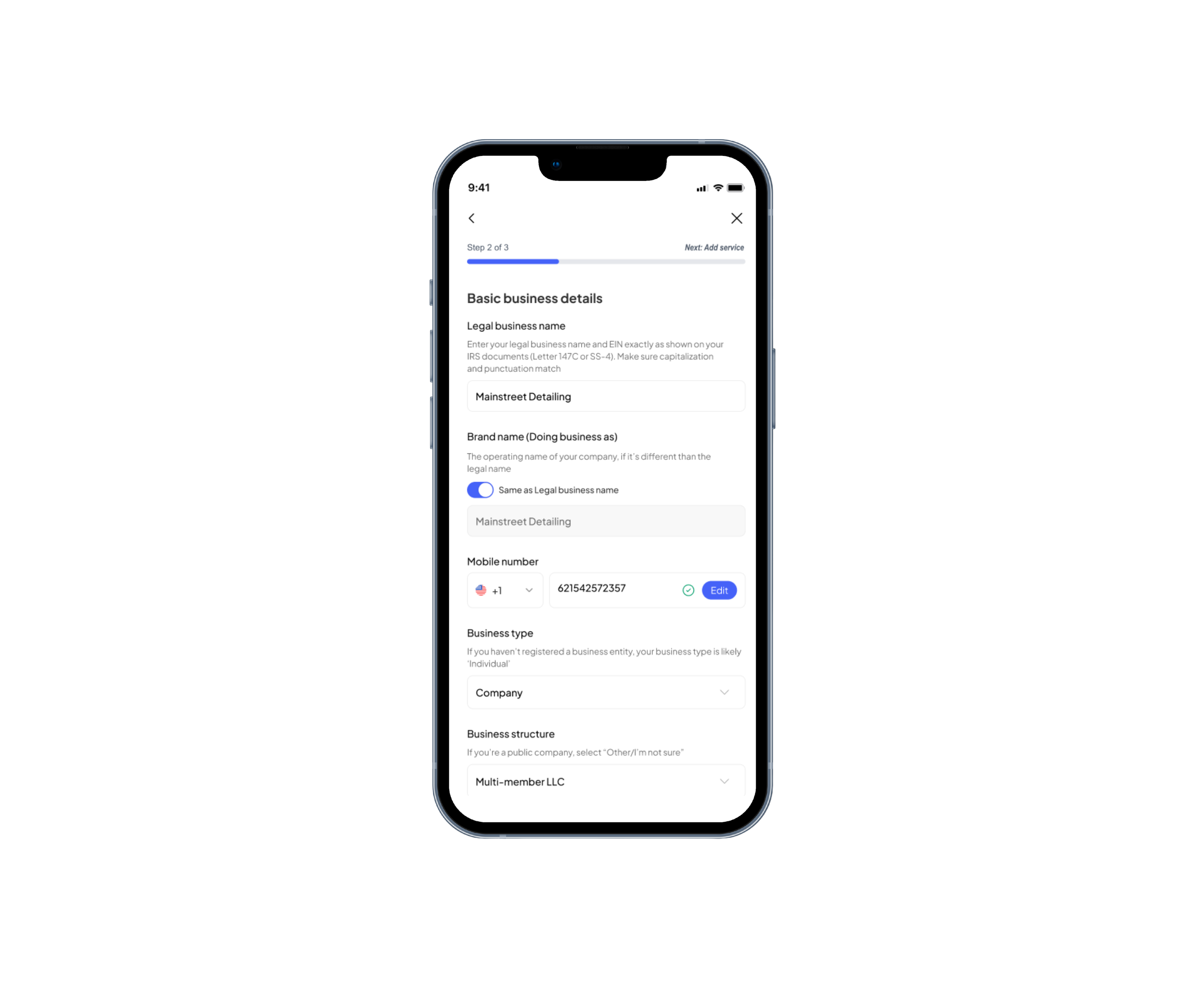
Step 4 — Enter Your Business Information
Provide your basic business details:
• Legal or business name
• Phone number
• Service area / coverage location
• Business address (if applicable)
• Business logo (optional but recommended)
Make sure your phone number is correct. Customers may contact you regarding a booking.
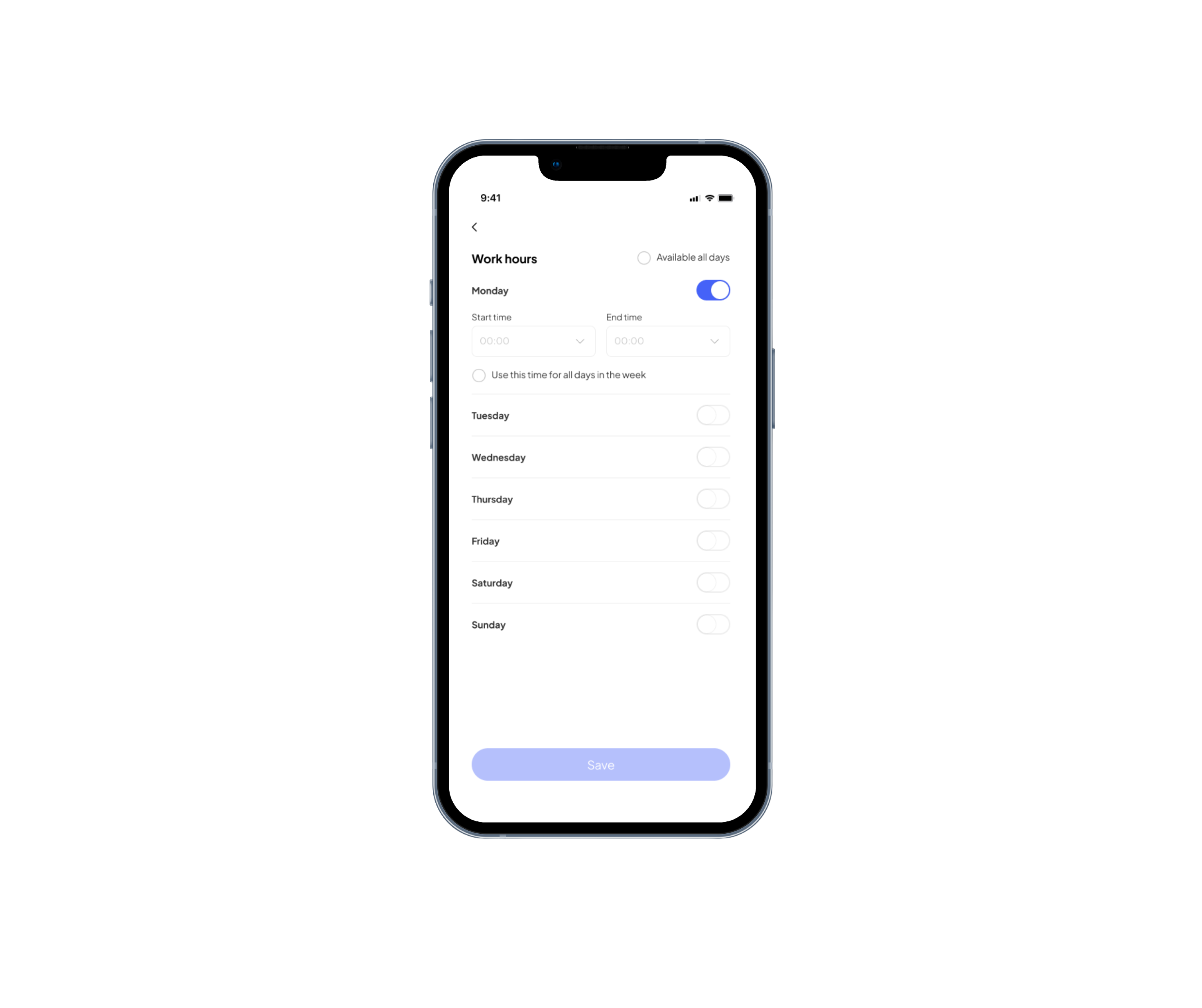
Step 5 — Set Your Availability
Next, configure your working schedule.
You will:
• Select your working days
• Set your working hours
You will only receive booking requests during the hours you set as available.
You can update your availability at any time inside the app.
Step 6 — Create Your Services
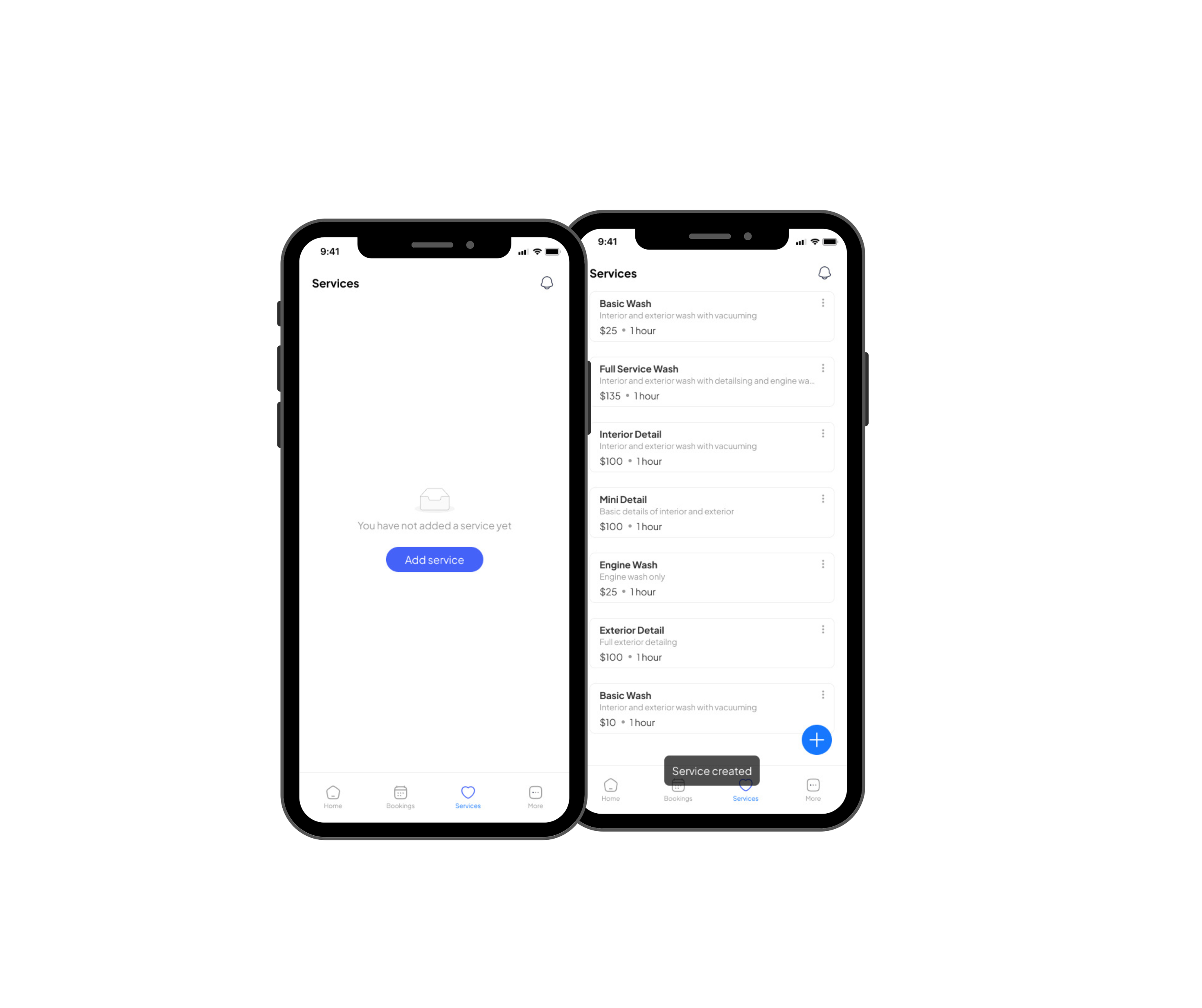
Add the services you want to offer on Bookovia.
Examples:
• Brake Pad Replacement
• Brake Inspection
• Rotor Replacement
• Brake Cleaning
• Exterior or Interior Detailing
For each service, complete the following information:
• Service name
• Service description
• Base price
• Estimated duration
Make sure your descriptions are clear so customers understand what is included in the service. You can edit, update, or add services at any time.
What Happens Next
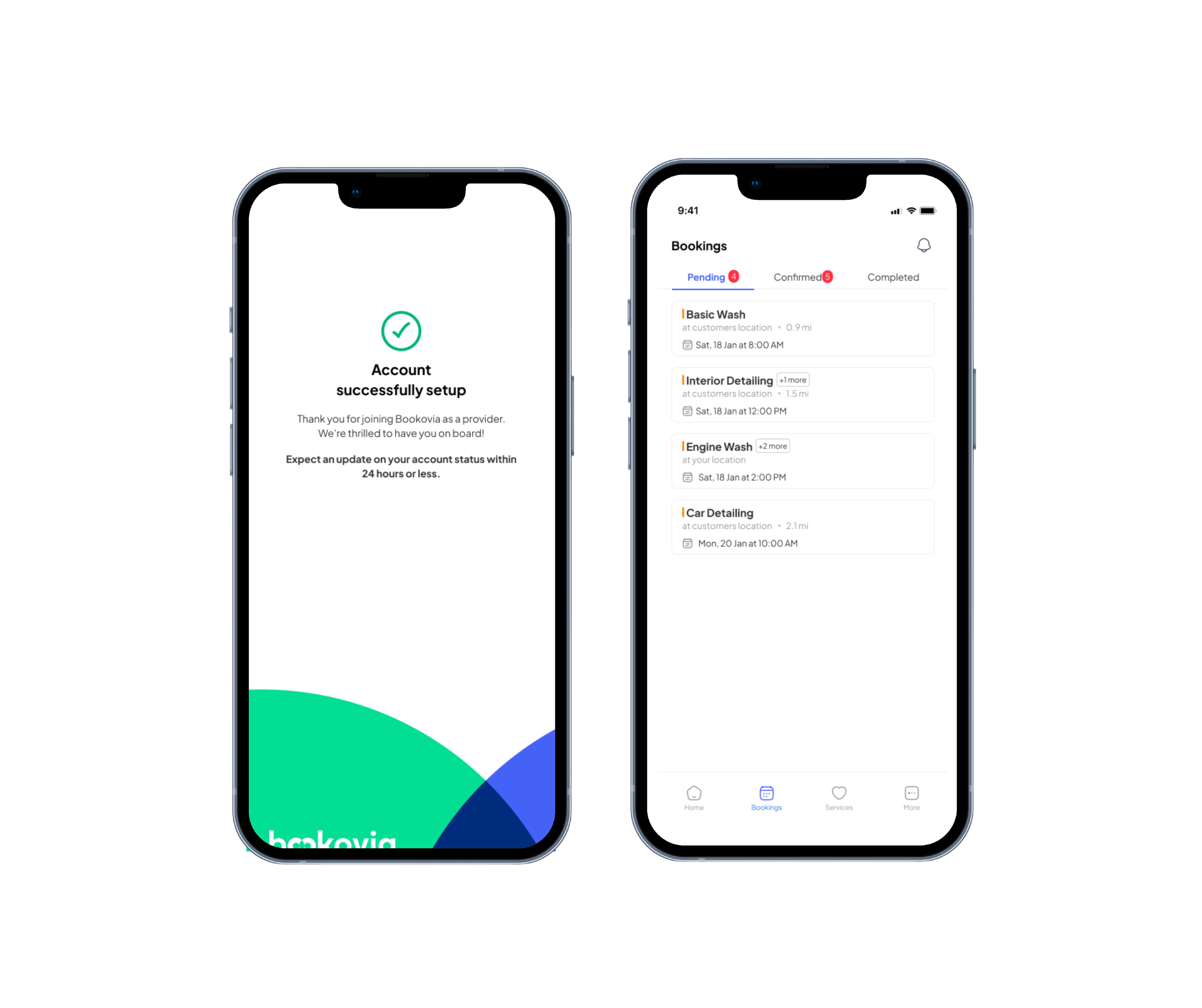
After completing all steps, your account setup will be submitted for review.
Before you can receive bookings, you will need to complete verification and payout setup.
(See the “Provider Verification & Approval Process” article for instructions.)
Once approved, you will be able to go online and begin receiving service requests from customers in your area.
Need Help?
If you experience problems during registration, contact Bookovia support through the same number or message thread where you received your invitation. Our team will assist you.


